
Google Sheets Insert Image in Cells: [2026 Guide]

Google Sheets provides two primary ways to insert images into cells. You can use the menu option that inserts a cell-anchored image or rely on the IMAGE function that loads an image from a URL.
Both approaches anchor the picture to a specific cell and move it automatically when the sheet is sorted or filtered. This article will explain both these methods to add images in rows in Sheets, and introduce SheetWhiz as an advanced alternative that makes the process a lot easier.
How Does Inserting Images in Cells Differ from Floating Images in Google Sheets?
In Google Sheets, inserting an image into a cell means the picture becomes part of the cell’s content instead of floating above the sheet. When an image is cell-bound it moves, sorts, and filters with its row because the cell stores the image attribute.
On the other hand, floating objects or images remain independent objects and do not relocate when rows are reordered or filtered. A floating object is useful for diagrams and slide-like layouts where layout independence matters.
How to Insert an Image into a Cell in Google Sheets?
Google Sheets provides a straightforward menu-based method to insert an image directly inside a cell. Another way is to use the IMAGE function. The following section explains all these methods in detail:
Method 1: Insert Images in Cells Using the Menu Options in Sheets
You can add an image in a cell using the Insert menu in Sheets, as explained in the following steps:
Step 1: Select the target cell where you want the image placed.
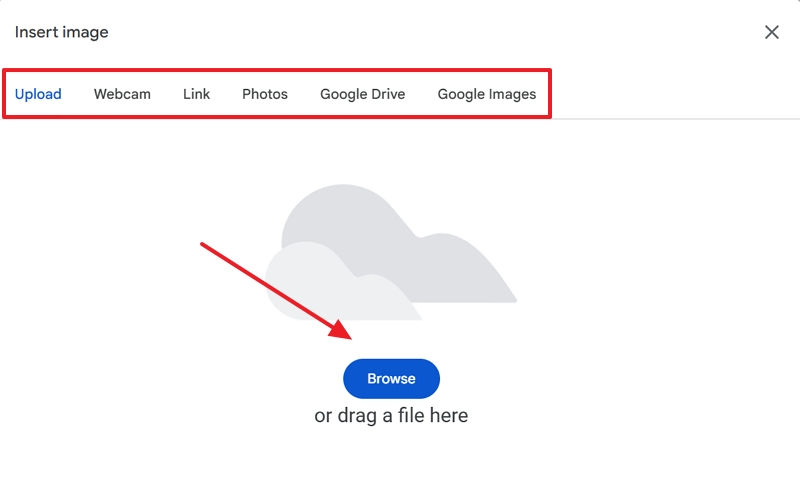
Step 2: Choose the Insert option from the Menu bar and select Image from the dropdown. Afterward, choose the Insert Image in Cell option and pick your source.

Step 3: Confirm the upload or URL and let Google Sheets anchor the image to the cell.
Method 2: Insert Images in Cells Using the Keyboard Shortcut Sequence in Sheets
You can make the above process quicker and simpler by using the following default shortcut sequence in Sheets:
Insert Image in Cells shortcut: Alt + I, G, I
Unlike the above method, this shortcut is simpler and allows adding images without having to scroll the mouse and manually navigate options.
Method 3: Insert Images in Cells Using the IMAGE Function in Google Sheets
Google Sheets also allows image insertion using formulas, which provides more flexibility for dynamic spreadsheets. The IMAGE formula uses the following syntax:
=IMAGE(url, mode, height, width)

The URL parameter loads the picture
The mode parameter controls how the image fits within the cell. Mode “1” fits the image inside the cell and preserves its aspect ratio. Mode “2” stretches the image, and mode “3” leaves the image at its original size if possible.
You can also specify height and width to control custom dimensions when needed.
Here is a tutorial on how to use it:

When to Use IMAGE() Instead of Menu Insertion?
IMAGE() minimizes manual uploads and allows rapid templating across large datasets. You should use the IMAGE function to add images in cells when:
Images must update automatically based on an underlying data field
When images come from external feeds
Use it in product catalogs where each SKU cell references a live asset URL and updates whenever the URL changes.
Google Sheets Image Insertion Methods (Quick Reference)
Here is a brief table that explains all these methods in a simple and accessible way:
Method | Shortcut or Path | Description |
Insert Image in Cell (Menu) | Insert → Image → Image in cell | Uploads or selects an image and anchors it inside the chosen cell |
Insert Image in Cell (Keyboard Navigation) | Alt → I → G → I | Opens the Insert Image in Cell dialog through keyboard access keys |
IMAGE Formula | =IMAGE(url, mode, height, width) | Loads an image from a URL directly into a cell using a formula |
Image Insertion Options in Google Sheets vs. Excel
Google Sheets focuses on cloud collaboration and data functions rather than complex image management capabilities. Excel historically offers local desktop features that support fill handles and image copy behavior, which Google Sheets does not replicate.
Although you can insert images in cells in Google Sheets, there are still times when Excel’s image insertion features take the lead. Here is a brief comparison to put things in perspective:
Feature | Google Sheets | Microsoft Excel |
Insert image into a cell | Yes, via Insert → Image in cell | Yes, via Insert → Pictures → Place in Cell |
Insert image from URL | Yes, via IMAGE() function | Yes, via IMAGE() function in newer versions |
Bulk image insertion | No native support (one cell at a time) | Yes, multiple pictures can be inserted at once |
Drag-fill or autofill images | Not supported | Supported with cell-anchored images |
Image library/gallery | None natively | Stocks and media options available in ribbon |
Want to learn about all the shortcuts available in Google Sheets? Find the list here: All Google Sheets Shortcuts.
SheetWhiz: A Better Way to Insert and Manage Images in Sheets
SheetWhiz is a productivity extension for Google Sheets that adds advanced tools and shortcuts that the tool otherwise lacks. It brings Excel-style shortcuts, formula auditing, and formatting cycles to the Sheets interface, allowing users to work much faster.
You can use SheetWhiz to insert images in cells with customizable shortcuts and make your workflow easier. Among its other useful features are shortcuts to merge or unmerge cells and to access format painter in Sheets. The keyboard shortcut to insert images in cells using SheetWhiz is:

For Windows: ALT + N + P
For MacBook: Option + N + P
These shortcuts open the image insertion dropdown from where you can choose to upload the image or insert it through the URL. The best part is that the shortcut is customizable, which means you can change it to something that fits your workflow.
How to Insert an Image in Cells Using SheetWhiz?
Once you set up the SheetWhiz in your Sheets, accessing these shortcuts becomes a one-step process. Here is how to add SheetWhiz in Sheets and add an image in cells:
Step 1: Start by downloading the SheetWhiz extension from the Chrome Web Store.

Step 2: Open the Sheets once the extension is installed, and you’ll be prompted to log in using your Google account. If you don’t already have an account, make sure to sign up for one (it is completely free).

Step 3: Now you are set to go. Simply press the above-mentioned shortcut keys to insert an image in cells. If you want to know how that works, go through the following video demonstration:

Why SheetWhiz is a Must-Have Extension for Chrome
SheetWhiz integrates into the Sheets UI and preserves existing sharing and collaboration features while adding capabilities professionals expect from dedicated spreadsheet tools.
These improvements make it easier to build catalogs, inventories, dashboards, and other visuals-rich sheets with far less manual work.
This Chrome extension also includes export options that convert selections into images. The “Export Selection as Image” feature in SheetWhiz lets you take any range and instantly turn it into a paste-ready image without manual screenshots. A few other notable features include:
Shortcut | Shortcut Keys | What It Does |
Trace Precedents | Ctrl + Shift + [ | Shows all cells referenced by a formula |
Trace Dependents | Ctrl + Shift + ] | Shows all formulas depending on a cell |
Goal Seek | ALT + A + W + G | Finds input value for target formula result |
What-If Analysis | ALT + A + W + T | Compares scenarios to impact outcomes |
Number Cycle | Custom shortcut | Cycles through a set of number formats |
Export Selection as Image | CTRL + SHIFT + C | Exports selected range as a formatted image |
Auto-Color Selection | CTRL + SHIFT + A | Highlights hardcoded or input cells |
How to Customize Shortcut to Insert Image in Cells using SheetWhiz?
As said above, the biggest convenience of SheetWhiz is that it allows users to customize shortcut keys, just like the Quick Access Toolbar in Excel. This helps easily adapt to Google Sheets, especially if they are switching from Excel. Here is a brief tutorial showing how to customize the image insertion shortcut in SheetWhiz:

Conclusion
You can use the Insert menu to add images in cells when visuals must move with rows and remain attached to records. Apart from that, use the IMAGE() for URL-driven images and prefer menu insertion for single uploads.
However, if you’re looking for Excel-level convenience when inserting images in cells, SheetWhiz is a highly recommended solution.


Comments