
Google Sheets Goal Seek Made Simple with SheetWhiz
- David Pang
- 54 minutes ago
- 7 min read

Introduction: When Excel Users Miss Goal Seek
If you’ve ever worked in Excel, you’ve likely used Goal Seek, that powerful what-if tool that instantly tells you the exact number you need to hit your target. Whether it’s setting sales goals, forecasting revenue, or calculating breakeven points, Goal Seek has always been one of Excel’s most useful time-savers. It’s simple, quick, and designed to help users make confident, data-driven decisions.
However, when professionals switched from Excel to Google Sheets, many were surprised to find that this feature wasn’t built in. While Google eventually introduced its own Goal Seek add-on, users quickly realized it was slow, clunky, and difficult to use. That frustration is exactly what inspired SheetWhiz Goal Seek: a clean, powerful, and Excel-style version of Goal Seek that brings back everything users loved about Excel, but built directly for Google Sheets.
If you’re exploring ways to make spreadsheets more efficient, check out our guide on how to add filters in Google Sheets, another great example of how SheetWhiz helps bridge Excel functionality into Google Sheets.
What Is Goal Seek and Why Does It Matter
Goal Seek is one of those rare spreadsheet tools that’s both simple and incredibly powerful. It lets you tell your spreadsheet the result you want, and it automatically calculates what input value would make that result true. Instead of manually adjusting numbers or formulas, Goal Seek does the work for you.
For example, imagine your formula calculates profit as total revenue minus total cost. You know your target profit, but not how many units you need to sell to achieve it. With Goal Seek, you simply set your profit cell as the “Set Cell,” type in your target profit as the “To Value,” and tell it which cell to change (like “Units Sold”). Goal Seek instantly finds the answer. It’s the same concept Excel Goal Seek users rely on daily, now made faster, cleaner, and usable in Google Sheets through SheetWhiz.

If you want to learn more about how Excel shortcuts and logic translate into Google Sheets, read our post on the best way to enable Excel shortcuts in Google Sheets.
Native Google Sheets Goal Seek: Still Working, But Still Limited
While Google’s native Goal Seek in Google Sheets add-on technically works, it’s slow, outdated, and limited compared to modern workflow expectations. It must be installed separately, has no keyboard shortcuts, and often struggles with larger or linked data sets, leaving users frustrated and looking for a faster, more reliable alternative.
No shortcuts: You have to open the Extensions menu and click the Goal Seek add-on manually every single time, then wait for it to load, whereas with SheetWhiz, the Goal Seek window appears instantly the moment you press the shortcut key.
Performance issues: Often lags or crashes with complex sheets.
Limited flexibility: The native add-on often struggles when your formula links to cells on another sheet or when your data range changes automatically, for example, if new rows are added or values update dynamically.
Poor user feedback: Rated only 2.7 stars, with many reporting errors and inconsistent results.


To compare, see how other Google Sheets shortcuts for financial modeling streamline workflow in our blog on Top 24 Google Sheets shortcuts for financial modeling.
For reference, here’s Google’s official Goal Seek support guide explaining how their native version works, though, as most users agree, SheetWhiz delivers the experience it should have been from day one.
SheetWhiz Goal Seek: Excel Power, Google Simplicity
SheetWhiz Goal Seek brings back the familiar speed and logic of Excel Goal Seek, but with an interface built for modern cloud users. Instead of clicking through multiple menus or retyping cells manually, you can simply press Alt + A + W + G on Windows or Option + A + W + G on Mac (both customizable) — or, if you prefer, just click the Goal Seek button in the SheetWhiz menu. The Goal Seek window appears instantly either way.

SheetWhiz even automatically fills in the “Set Cell” field based on the cell that you’re on when you run Goal Seek, saving you valuable time on setup. SheetWhiz mirrors the Excel experience. As long as you have the set cell or by changing the cell field selected, it will automatically populate with the cell that you are clicking on in this spreadsheet. This means you don't have to type anything in - you just click the Excel you want to use for Goal Seek, and SheetWhiz will know what to use.
Beyond shortcuts, SheetWhiz offers advanced options that make it far more versatile.
You can define tolerance to control how close you want to get to your goal. For example, if you set the tolerance to 0.01, you're okay with a result that’s within 0.01 of your target value. You’d typically set something more lenient if:
Your function’s output is noisy
Small changes in input cause big swings in output
The function doesn’t converge neatly
You don’t need precision and prefer faster results
Similarly, you can adjust max attempts to fine-tune precision and performance. For instance:
Set max attempts to 500 when working with large financial models or deeply nested formulas that take longer to stabilize.
Use a lower value like 50 for simpler equations or quick what-if checks where you want faster results.
Think of it like trying to guess a friend’s secret number between 1 and 100, if you’re allowed more guesses (max attempts), you’ll almost always land closer to the right answer. Fewer guesses get you there faster, but maybe not perfectly.
This gives you full control over speed versus accuracy, and with SheetWhiz Goal Seek, you can even run these operations seamlessly across multiple sheets, something many third-party add-ons still can’t do. It’s sleek, reliable, and perfectly suited for analysts, consultants, and finance teams who rely on accuracy and speed.

You can also explore how to trace dependents in Google Sheets to visualize which formulas depend on specific cells, a perfect complement to using Goal Seek effectively.
Real Life Example: Using Goal Seek to Hit a $10,000 Profit Target
Let’s walk through a real example you can recreate directly in your own Google Sheet using SheetWhiz Goal Seek.
Sample Table:
Item (Column A) | Value (Column B) |
A1: Selling Price per Unit | B1: 50 |
A2: Units Sold | B2: 200 |
A3: Fixed Cost | B3: 5000 |
A4: Variable Cost per Unit | B4: 20 |
A5: Profit | B5: =(B1*B2)*(B3+(B2*B4)) |
Guessing Game:

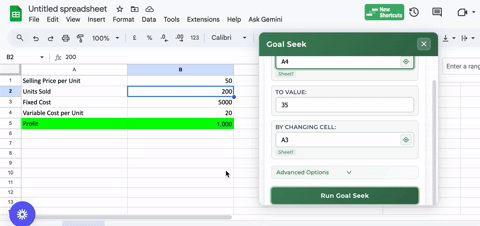
In this scenario, you want to know how many units you need to sell to earn a profit of $10,000. Normally, you’d have to keep adjusting the “Units Sold” cell until the “Profit” cell shows 10,000, a tedious guessing game.
But with Goal Seek, it’s effortless.
Steps in SheetWhiz Goal Seek:
Open Goal Seek (Alt + A + W + G).
Set Cell: B5 (your Profit formula → this will fill automatically by SheetWhiz if you run Goal Seek when you have this cell selected).
To Value: 10000 (your target profit).
By Changing Cell: B2 (your Units Sold).
Click “Run Goal Seek”.
Result: SheetWhiz instantly updates your Units Sold to 500, and your Profit recalculates to 10,000: accurate, immediate, and done without any manual work.
Remember, this is a straightforward example, but if something is more complex or doesn't necessarily converge. You can use the advanced options of tolerance and max attempts features to make Goal Seek work for your specific use case.
If you’re exploring how spreadsheet automation is changing finance and analysis, see our post on why Google Sheets will displace Excel — even on Wall Street.
Why Professionals Prefer SheetWhiz Goal Seek
Professionals prefer SheetWhiz Goal Seek because it transforms complex what-if analysis into a fast, intuitive process. Instead of manually changing inputs and checking formulas repeatedly, users can reach accurate results with a single click, saving time, reducing errors, and improving collaboration across shared spreadsheets.
Fast results: Triggered with the familiar Excel-style Alt+A+W+G shortcut, SheetWhiz automatically fills in your values and instantly calculates the exact result—no manual changes or recalculations required.
Accurate modeling: Eliminates formula errors and guesswork.
Collaborative-friendly: Built to work seamlessly in Google Sheets.
Cross-sheet capable: Runs Goal Seek across multiple linked tabs, with advanced options to fine-tune results using tolerance levels and max attempts for greater precision.
Perfect for teams: Ideal for finance professionals needing precise outcomes quickly.
If you’d like to be part of a growing finance community, join some of the best professional networks listed in our article on Top 5 best Slack community channels for finance professionals.
Try Goal Seek by SheetWhiz
Experience Excel-grade speed and accuracy directly inside Google Sheets. We were frustrated with the lack of quality Goal Seek options out there, and so we built the one that we would want to have in Google Sheets. It's triggered with a shortcut, auto-populates your values in a clean UI that makes sense for anyone who has used Excel.
Try Goal Seek by SheetWhiz, part of the Pro Plan with a 21-day free trial. Instantly bring Excel-style forecasting, speed, and precision to your spreadsheets. Goal Seek remains one of the most useful features in spreadsheet history, and thanks to SheetWhiz, it’s finally available in a version that’s fast, intuitive, and built for how modern teams work today.
Visit the Chrome Web Store to download Goal Seek by SheetWhiz or explore all features at SheetWhiz.
FAQs
Does Google Sheets have Goal Seek natively?
No. There is a poorly rated and maintained Google add-on for it, but the SheetWhiz Chrome extension is far superior given it can be triggered by shortcut, runs immediately, and has a modern / intuitive UI that mimics Excel’s experience (e.g., auto-populates values based on the cells you’ve selected in the spreadsheet).
Why does my Goal Seek say “cell must contain a value”?
This message appears when your “Set Cell” doesn’t contain a formula. Always make sure your “Set Cell” is a calculated field and your “By Changing Cell” is a number.
Can Goal Seek handle multiple variables?
No. Goal Seek is designed to adjust one variable at a time. If you want to analyze multiple variables simultaneously, use the Data Sensitivity feature inside SheetWhiz.
How is SheetWhiz Goal Seek different from Excel’s version?
It’s built on the same logic but with a faster, more intuitive interface for Google Sheets. You get Excel-style performance without ever leaving your browser.
For deeper insight into how spreadsheet automation is transforming workflow, you can also refer to Microsoft’s official Goal Seek documentation for comparison.


Comments