
Google Sheets Font Color Shortcut (Alt+H+F+C)

If you work across Excel and Google Sheets, you already know this moment. You press Alt + H + F + C out of habit and nothing happens. So you grab the mouse, open the font color palette from the toolbar, and pick the shade you need.
Google Sheets does not support Excel-style ribbon shortcuts natively. But there are more keyboard options than most people realise, and with SheetWhiz, you can get the full Alt + H + F + C experience working exactly like Excel.
This guide covers every method for changing font color in Google Sheets from the keyboard, including the Google Sheets font color shortcut, what each one can and cannot do, and which to use depending on the situation.

Methods to Change the Google Sheets Font Color Shortcut
There are four methods. Each one suits a different situation.
Option 1: The Format Menu (Mouse Required)
Select your cells, open the font color palette from the toolbar or ribbon menu, and choose a shade. This is the default native workflow in Google Sheets and the one most users rely on. For occasional formatting, it works perfectly fine. But when you are repeatedly color-coding large sheets, financial models, or operational trackers, constantly switching between keyboard and mouse starts to slow your workflow and break navigation flow.

Option 2: Alt + / Then Type a Color Name (Native, No Install Needed)
This is the most useful native keyboard option and most people have never tried it. Per Google's own documentation, pressing Alt + / on Windows or ChromeOS (Option + / on Mac) opens the universal menu search bar. Type a color name like "red" or "blue" and Google Sheets surfaces both the text color and highlight color options for that name. Press Enter to apply.
No install needed. Fully keyboard-driven. Faster than any mouse workflow for standard named colors. The limitation is that it only works for colors Google recognises by name. You cannot type a hex value. Brand colors, custom shades, anything outside the named set, are not reachable this way. And because it involves a search step plus result selection each time, it is still multiple keystrokes rather than one.

As you can see above, you normally have to type the colour first but with the SheetWhiz extension, you just need to select it.
Option 3: Alt + H + F + C via SheetWhiz (Full Picker, Arrow Key Navigation)
With SheetWhiz installed, Alt + H + F + C opens the font color picker directly. No search step, no menu traversal, no mouse. The picker opens on the first keystroke. Use arrow keys to move through the palette and press Enter to apply. Every step stays on the keyboard.
If you need a custom hex or brand-specific color, SheetWhiz also includes a dedicated Set Font Color – Custom shortcut using Alt + H + C + M, which opens the custom color selector directly without navigating through the palette first.
SheetWhiz has also redesigned the color selector with improved contrast compared to the native Google Sheets version. Darker shades are meaningfully easier to distinguish as you navigate the grid, which matters when you are working with a color-coded financial model and need precision on similar tones.

Custom hex colors are also accessible here. If your palette includes brand-specific shades without a common name, Alt + H + F + C gets you to the custom color input. The Alt + / method cannot do this.
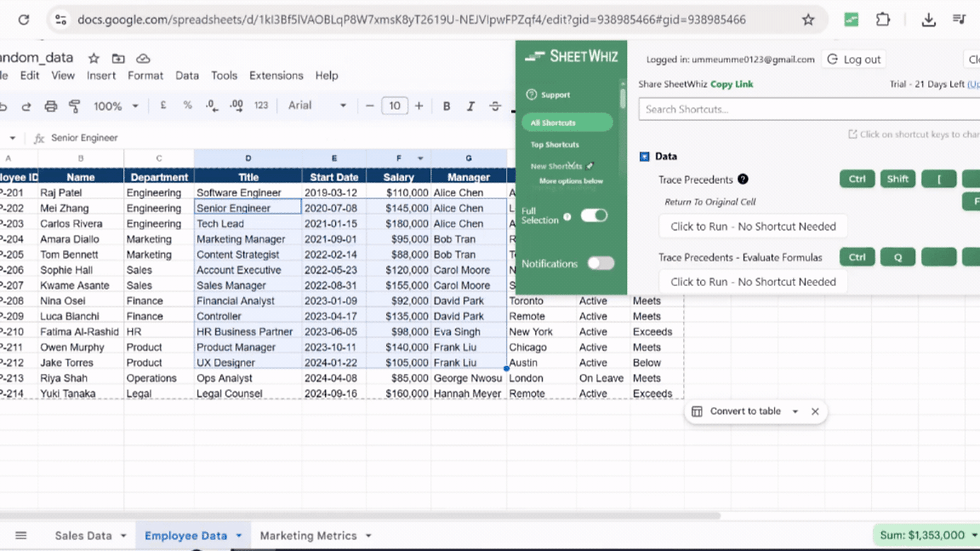
Install the SheetWhiz Chrome extension, reload your sheet, and the shortcut is active immediately. Key combinations are customizable in SheetWhiz settings if you want a different mapping.
Option 4: The SheetWhiz Font Color Cycle (No Picker, One Keypress)
Instead of opening a color palette, SheetWhiz lets you cycle through preset font colors using a single shortcut. Each press applies the next color in your saved sequence directly to the selected cell.
How it works (step-by-step)
Install the SheetWhiz Chrome extension and open Google Sheets.
Set your preferred font colors in the SheetWhiz settings (in the exact order you want them to cycle). Example: Red → Green → Blue → Black
Click a cell in your sheet.
Press your shortcut (e.g., Ctrl + ‘). → First press applies Red → Second press applies Green → Third press applies Blue → Fourth press goes back to Red
Each press automatically moves to the next color in your preset list.
What you get in practice
No color palette opens
No mouse movement required
No menus or dropdowns
Just select a cell and press a key
Shortcut reference (example setup)
Action: Cycle font color
Shortcut: Ctrl + Shift + K (via SheetWhiz)
Result: Applies next preset font color instantly
Why this is useful
This workflow is designed for repetitive formatting tasks where you reuse a small set of colors, such as:
Status tracking (Red = issue, Yellow = pending, Green = done)
Financial models
Content or editorial workflows
Large dataset tagging
It’s faster than traditional formatting because you stay in keyboard flow without opening any UI.
A similar workflow also exists for background fills. We explored that in more depth in our guide to the Google Sheets fill color shortcut, including how finance and operations teams use color cycles to speed up repetitive spreadsheet workflows.

All Methods Side by Side
Method | What You Actually Do | Mouse Needed? |
Format menu | Click Format → hover Text Color → click color | Yes |
Alt + / | Press shortcut, type color name (e.g. "red"), Enter | No (named colors only) |
Alt + H + F + C (SheetWhiz) | Press shortcut, arrow keys to navigate, Enter | No |
Font color cycle (SheetWhiz) | One keypress → cycles through your preset colors instantly | No |
Formula Ribbon / Toolbar | Press Alt + / (or F10) → arrow/tab to "Text color" in toolbar → choose color | No (full keyboard) |
How to Set Up SheetWhiz
Go to the SheetWhiz extension on the Chrome Web Store and click Add to Chrome.
Once installed, reload any open Google Sheet. SheetWhiz prompts you to log in. A free account includes the core Excel-style shortcuts including Alt + H + F + C.
To access the font color cycle and configure your custom color list, upgrade to Pro and open SheetWhiz settings from within any sheet.
Alt + H + F + C is active immediately after install. Select your cells, press the shortcut, navigate with arrow keys, press Enter to apply.

Other Shortcuts That Pair Well With Font Color
Font color is one piece of a broader formatting workflow. These SheetWhiz shortcuts combine well with it.
Fill Color Cycle: Applies background color from the same cycle logic. Combine with font color to build clear visual hierarchies, for instance white text on a dark fill for section headers.
Font Size (Alt + H + F + G to increase, Alt + H + F + K to decrease): Adjust text weight alongside color for emphasis within a sheet.
Auto-Color Selection: SheetWhiz can automatically color cells based on content type across a whole sheet, hardcodes blue, formulas black, errors red, without you applying anything manually. More efficient than the cycle for large initial coloring runs. The cycle is better for targeted ongoing work and overrides.
Trace Precedents: Visually trace formula dependencies. Pairs naturally with the color-based auditing workflows described above.
Conclusion
Google Sheets has more keyboard options for font color than most users realise. The Google Sheets font color shortcut using Alt + / works for named colours and requires no installation. For custom colours, hex values, brand palettes, and the direct Alt + H + F + C experience Excel users expect, SheetWhiz closes the gap without asking you to relearn anything.
Add the font color cycle on top and repetitive color-coding work, model conventions, audit flags, status columns, becomes keyboard-only. The mouse does not need to come into it.
Install SheetWhiz at sheetwhiz.com, or reach out at david@sheetwhiz.com for questions about team plans or onboarding.
Frequently Asked Questions about Google Sheets Font Color Shortcut
Is there a built-in Google Sheets Font Color Shortcut to change font colour?
Yes, one. Alt + / (Option + / on Mac) opens the menu search bar. Type a color name and press Enter to apply it. It works for named colors only and not for custom hex values. There is no single-keystroke shortcut that opens the full color picker natively. SheetWhiz adds that with Alt + H + F + C.
What is the difference between Alt + / and Alt + H + F + C?
Alt + / is a multi-step search that works for named colors only. Alt + H + F + C via SheetWhiz opens the full color picker in one keystroke, supports custom hex values, and lets you navigate with arrow keys before confirming with Enter.
Can I apply custom hex colors from the keyboard?
Not with the native Alt + / method. That only matches color names. With Alt + H + F + C via SheetWhiz, yes. The picker includes a custom hex input. For colors you use repeatedly, you can also add them to the font color cycle for instant one-keypress application.
What is the font color cycle and when should I use it?
The cycle shortcut applies a color from a pre-set list instantly, with no picker opened. Use it when you are applying the same two to four colors repeatedly. Use the picker (Alt + H + F + C) when you need to browse or use a color outside your configured set.
Does SheetWhiz change the color selector UI?
Yes. SheetWhiz improves the contrast of the color selector, making shades easier to distinguish, especially in the dark end of the palette. The full selector is also navigable with arrow keys and confirmed with Enter, so the mouse is never required.
What other Excel shortcuts does SheetWhiz bring to Google Sheets?
Fill color, font size, borders, paste special, freeze and unfreeze, merge and unmerge, trace precedents and dependents, goal seek, what-if analysis, and more. Full list on the SheetWhiz features page.


Comments