
How to Clear Filters in Google Sheets (ALT + A + C Shortcut + Workarounds)

You apply filters to a dataset, drill into the view you need, and then spend 30 seconds clicking through dropdowns to reset every column back to "Select All." Finance and operations teams who review transactions, reconcile line items, or slice revenue data run into this repeatedly throughout a session.
Google Sheets does not have a single native shortcut to clear all active filters at once. However, there are three alternative native approaches that you can follow, although they don’t function exactly like the clear filter shortcut in Excel. For the Excel-style Alt/Option + A + C keyboard shortcut, you will have to use SheetWhiz, which clears filters without removing them.
Clearing filters matters because if you miss unfiltering even one column, any data you paste over the old data can create a mix of old and new data in your filtered view. Stick around, and we will comprehensively explain how you can access Excel’s clear filter functionality directly in Google Sheets using SheetWhiz.
How to Clear Filters in Google Sheets (Native Methods)
While there are no built-in shortcuts to clear filters in Google Sheets, it still gives you a few ways to remove filter conditions. Each one serves a different situation, such as removing everything at once, resetting one column at a time, or cycling the filter off and back on.
None of them uses a single keyboard shortcut to reset all active filters. Every approach requires at least two to three clicks through the menu or dropdown panel.
Method 1: Remove All Filters via the Data Menu
This is the most direct approach when you want to remove all active filter conditions and the dropdown arrows in one action. It completely resets the sheet to an unfiltered view. Please note that this is not helpful if you want to recut the data, as the filter has been removed and you will have to reapply it to the same range. Here is how to do it:
Step 1: Click any cell inside the filtered dataset.
Step 2: Open the Data menu in the top navigation bar.
Step 3: Click Remove filter.

Google Sheets clears all column filter conditions and removes the dropdown arrows from the header row at once. This is the right method when you are done with the current filter session and want to start fresh.
The drawback is that removing the filter also removes the original filter range. If you add filters back later, Google Sheets has to detect the range again. In datasets with blank rows, hidden sections, or inconsistent formatting, it may apply the filter to only part of the dataset instead of the full range you intended.
Method 2: Clear Individual Column Filter Conditions
Use this method when you want to reset one column's active filter without affecting the other columns. This is common when you are narrowing a filtered view step by step and need to backtrack on one dimension while keeping the rest.
Step 1: Click the filter dropdown arrow on the column header you want to reset.
Step 2: Click Select all at the top of the filter panel. This re-checks all values in that column.
Step 3: Click OK.
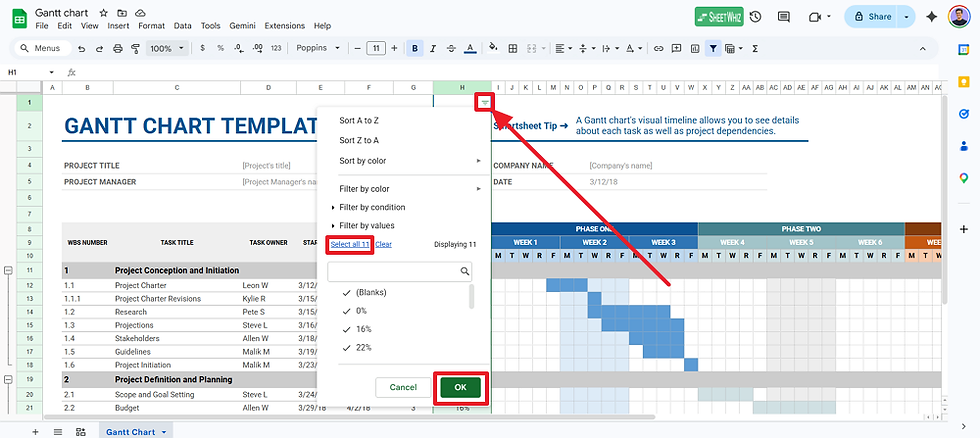
Repeat the same process for any other column you want to clear individually. This method works, but it is easy to miss one active column filter, especially in wide finance or operations datasets. If you paste refreshed data over a view where one column is still filtered, Google Sheets may only paste into the visible rows. That can leave old values hidden between new rows, creating a mixed dataset that is difficult to catch later.
Note. Google Sheets does not have a native keyboard shortcut to clear all filter criteria in one step. Excel's Alt/Option + A + C (clear filter) or CTRL + SHIFT + L (remove filter) do not function natively in Google Sheets.
However, SheetWhiz can help you access these shortcuts inside Google Sheets, and you can learn more about it in our detailed guide on adding filters in Google Sheets using the Ctrl + Shift + L.
How to Clear Filters on a Specific Range (Filter Views)
Before clearing filters, it helps to understand how Google Sheets separates two types of filtered views. A standard filter changes what every collaborator sees in the sheet. A Filter View is a personal, named view saved per user. It does not change what other collaborators see while they work.
This distinction matters for finance teams where multiple analysts review the same sheet at the same time. One analyst can filter the dataset to their portfolio segment while another keeps the full view open, all without conflict.
To clear filter conditions within a Filter View:
Step 1: Open the Filter View by clicking Data → Filter views → [View name]. A bar appears at the top of the sheet to indicate an active Filter View.

Step 2: Click the dropdown arrow on the column you want to reset.
Step 3: Click Select all, then OK.
Step 4: Repeat for each active column condition within the view.
To exit the Filter View entirely, click the X on the right side of the dark bar, or navigate to Data → Filter views → None. Exiting the Filter View returns you to the standard sheet view without affecting anyone else's session.

Filter Views are saved automatically. Closing a Filter View does not delete it. All named views remain available for reuse under Data → Filter views any time.
How to Clear All Filter Criteria with a Google Apps Script
For teams that clear filters on large datasets repeatedly, such as during monthly close cycles, reconciliation reviews, or report generation. Manually clicking through the menu adds up. A Google Apps Script macro removes those manual steps and can be assigned to a keyboard shortcut you define.
The script below clears all active filter criteria on the active sheet without removing the filter dropdowns. This is different from Remove filter, which deletes the dropdowns entirely. Here, the dropdowns stay in place, and all rows become visible. This is the same result as clicking Select all on every column at once.
Step 1: Open Extensions → Apps Script in your Google Sheet.
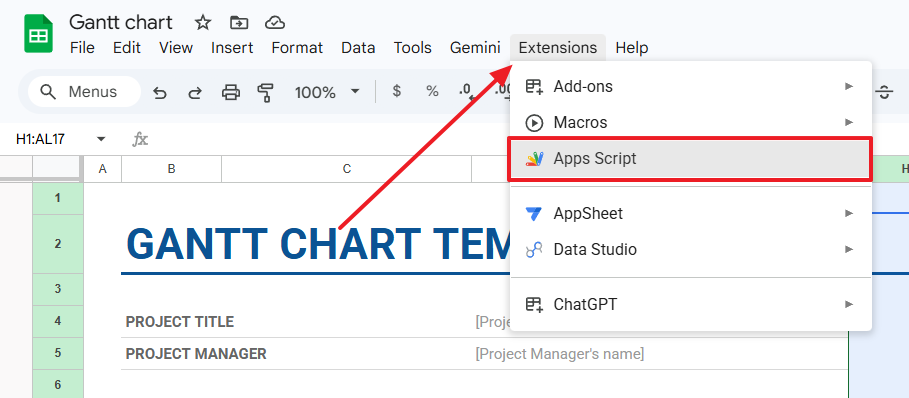
Step 2: Paste the script into the editor, rename it to clearAllFilterCriteria, and click Save. You can also click the Run button to test if it works.
function clearAllFilterCriteria() {
const sheet = SpreadsheetApp.getActiveSpreadsheet().getActiveSheet();
const filter = sheet.getFilter();
if (!filter) {
SpreadsheetApp.getUi().alert('No filter is active on this sheet.');
return;
}
const range = filter.getRange();
const numCols = range.getNumColumns();
const startCol = range.getColumn();
for (let i = startCol; i < startCol + numCols; i++) {
filter.removeColumnFilterCriteria(i);
}
}

Step 3: Open Extensions → Macros → Import and import the clearAllFilterCriteria function.
Step 4: Open Extensions → Macros → Manage macros.
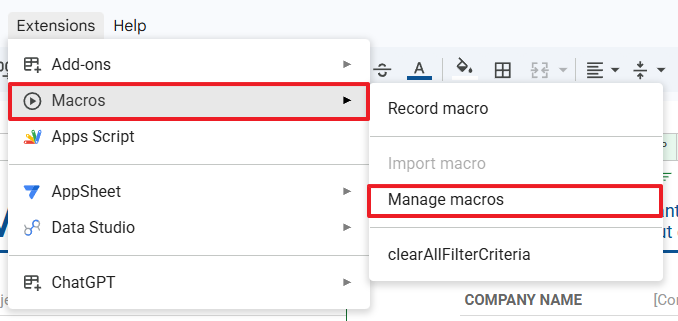
Step 5: Finally, assign a keyboard shortcut to the macro and hit the Update button to start using it.

Google Sheets supports macro shortcuts in the range Ctrl + Alt + Shift + 0 through Ctrl + Alt + Shift + 9. Once assigned, pressing that combination clears all filter criteria instantly. Filter dropdowns stay visible, and all rows reappear, ready for a new filter session.
Note that Google Sheets limits you to 10 macro shortcuts total (0 through 9), so plan your assignments accordingly.
How to Clear Filters in Google Sheets with SheetWhiz
All native methods require multiple menu clicks. The Apps Script approach requires setup. For finance and operations professionals who already know Alt + A + C from Excel, SheetWhiz allows them to bring that same shortcut directly into Google Sheets without a script, menu, or extra setup.
SheetWhiz is a Chrome extension that adds Excel keyboard shortcuts to Google Sheets. The Alt/Option + A + C shortcut clears all active filter criteria while keeping the filter dropdowns in place, same as Excel. Press it once to turn filters on, press it again to turn filters off, and clear all active conditions. It works on Mac (Option instead of Alt) and Windows, and requires no configuration beyond installation.
Unlike manually resetting each column, the shortcut clears all active criteria at once, so you do not have to inspect every dropdown to make sure nothing is still filtered. Unlike Data → Remove filter, it keeps the existing filter range in place. That means you can start a new filter session without risking that Google Sheets reapplies filters to the wrong range later.
Here is how to use SheetWhiz to add and clear filters:
Step 1: Install the SheetWhiz extension from the Chrome Web Store and reload your Google Sheet. SheetWhiz works in Chrome, Arc, Brave, and Island on Mac and Windows.

Step 2: Upon refreshing the sheet, the SheetWhiz logo appears in the top-right area of the browser. Click the logo to complete the sign-up process.

Step 3: Afterward, simply use the Alt/Option + A + C shortcut to clear filters from your sheet.

Customize the Filter Shortcut in SheetWhiz
Every SheetWhiz shortcut is fully remappable. If your team uses a different key combination for filter actions, or if Alt/Option + A + C conflicts with another shortcut in your browser, you can change it to any key combination you prefer.
Here is how to change the filter shortcut in SheetWhiz:
Step 1: Click the SheetWhiz logo in the top-right area of the browser to open the extension menu.
Step 2: Find the Clear Filters shortcut under the Data tab, or search for it in the search bar.
Step 3: Click the shortcut key displayed next to the action and replace each key according to your preference.

More Filter and View Shortcuts SheetWhiz Brings to Google Sheets
The filter toggle is one part of a broader set of Excel-style view and data shortcuts that SheetWhiz adds to Google Sheets. Finance teams working across Excel and Google Sheets use this full set to maintain consistent keyboard workflows in both tools. The following table shows the related shortcuts available across Mac and Windows:
Action | Shortcut |
Add / Remove Filters | Ctrl + Shift + L |
Show/ Hide Gridlines | Alt/Option + W + V + G |
Freeze Rows and Columns | Alt/Option + W + F + F |
Unfreeze Rows and Columns | Alt/Option + W + F + U |
Freeze Columns Only | Alt/Option + F + C |
Freeze Rows Only | Alt/Option + F + R |
For the complete list of Excel shortcuts SheetWhiz adds to Google Sheets, see the SheetWhiz Google Sheets shortcuts list.
Why Choose SheetWhiz for Filter Work in Google Sheets
SheetWhiz picks up where Google Sheets' native shortcuts leave off. The table below compares the native Google Sheets filter experience with what SheetWhiz adds:
Feature | Google Sheets (Native) | SheetWhiz Extension |
Toggle filters on/off | Menu only (Data → Create / Remove filter) | Ctrl + Shift + L keyboard shortcut |
Clear all filter criteria | Menu click (Data → Remove filter) | Alt/Option + A + C clears all in one keystroke |
Open filter dropdown | Ctrl + Alt + R (keyboard shortcuts must be enabled first) | Alt/Option + Down Arrow (same as Excel) |
Shortcut customization | Not available | Every shortcut is fully remappable |
Formula tracing | Not available | Trace Precedents and Trace Dependents |
Excel-style paste special | Not available | Full suite via Alt/Option + E + S |
Format cycling | Not available | Number, font color, and fill color cycles |
For teams already using tools like Macabacus, Arixcel, or Capital IQ inside Excel, SheetWhiz provides the equivalent productivity layer in Google Sheets. The SheetWhiz features page covers the full set of tools available.
SheetWhiz is SOC 2 Type II compliant and does not view or store your spreadsheet data.
Ending Remarks
Clearing filters in Google Sheets is not just about saving clicks. It also helps protect the accuracy of your data. When you reset filters one column at a time, it is easy to miss one active filter. If you then paste new data over the filtered range, Google Sheets may only overwrite the visible rows, creating a mix of old and new data that can be hard to detect later.
The native Data → Remove filter option avoids that issue by removing all filters at once, but it creates another problem: the filter range is deleted entirely. When you add filters back, Google Sheets may not always apply them to the full dataset you intended, especially if the data contains blank rows or gaps. That can leave part of your dataset outside the filter range.
That is why keeping the original filter range in place matters. A clear-filter shortcut resets the criteria without removing the filter setup itself. With SheetWhiz, Alt/Option + A + C clears active filter criteria while preserving the filter range, so your sheet is ready for the next review without the risk of missing a column or reapplying filters to the wrong data.
FAQs
Does Google Sheets have a keyboard shortcut to clear all filters?
Google Sheets does not have a native shortcut to clear all active filter criteria at once. The fastest native method is Data → Remove filter, which removes all filter conditions and dropdowns in one click.
For a keyboard-driven option, you can assign a Google Apps Script macro to a shortcut, or install SheetWhiz to use Alt/Option + A + C.
What is the difference between "Remove filter" and "Turn off filter" in Google Sheets?
Both options remove active filter conditions from all columns and delete the filter dropdowns from the header row. The option label changes contextually depending on filter state and the Google Sheets version in use. To re-enable filter dropdowns after removing them, use Data → Create a filter.
What is the difference between clearing filter criteria and removing a filter?
Clearing filter criteria resets which rows are visible while keeping the filter dropdowns and original filter range in place. Removing a filter deletes both the active criteria and the dropdown arrows. If you reapply filters later, Google Sheets may detect a smaller range than intended, especially if the dataset contains blank rows or gaps.
How does clearing filters in Google Sheets compare to Excel?
In Excel, Ctrl + Shift + L toggles filters on and off, and Alt → A → C clears all active filter criteria while keeping the dropdowns in place. Google Sheets has neither shortcuts natively. The "clear criteria only" behavior, equivalent to Excel's Alt → A → C, requires either the Apps Script macro or clearing each column individually which is time-consuming and prone to error (e.g., forgetting to clear a column).
Does SheetWhiz change my formulas or data when toggling filters?
SheetWhiz does not modify formulas, cell values, or sheet structure. The Alt/Option + A + C shortcut triggers the same filter toggle that the native Google Sheets menu performs. SheetWhiz provides the keyboard entry point only. The underlying operation is identical to clicking through the Data menu.
How do I install SheetWhiz to get the filter shortcut in Google Sheets?
Install SheetWhiz from the Chrome Web Store in any Chrome-based browser on Mac or Windows. After installation, reload your Google Sheet. The SheetWhiz logo appears in the top-right area of the browser. Press Alt/Option + A + C in any sheet to activate the filter shortcut immediately. No additional configuration is required.


Comments